Bulk rename
Google Drive batch rename — hundreds of files at once
Batch rename Google Drive files in a single job: find-and-replace, add prefixes or suffixes, or auto-number an entire folder. No installs, no scripts, scoped access.
How it works
Three steps, one batch
No installs, no scripts — connect, select, and run.
Connect Google Drive
Sign in with scoped OAuth access. DriveBatcher only touches the files and folders you explicitly pick.
Select the files
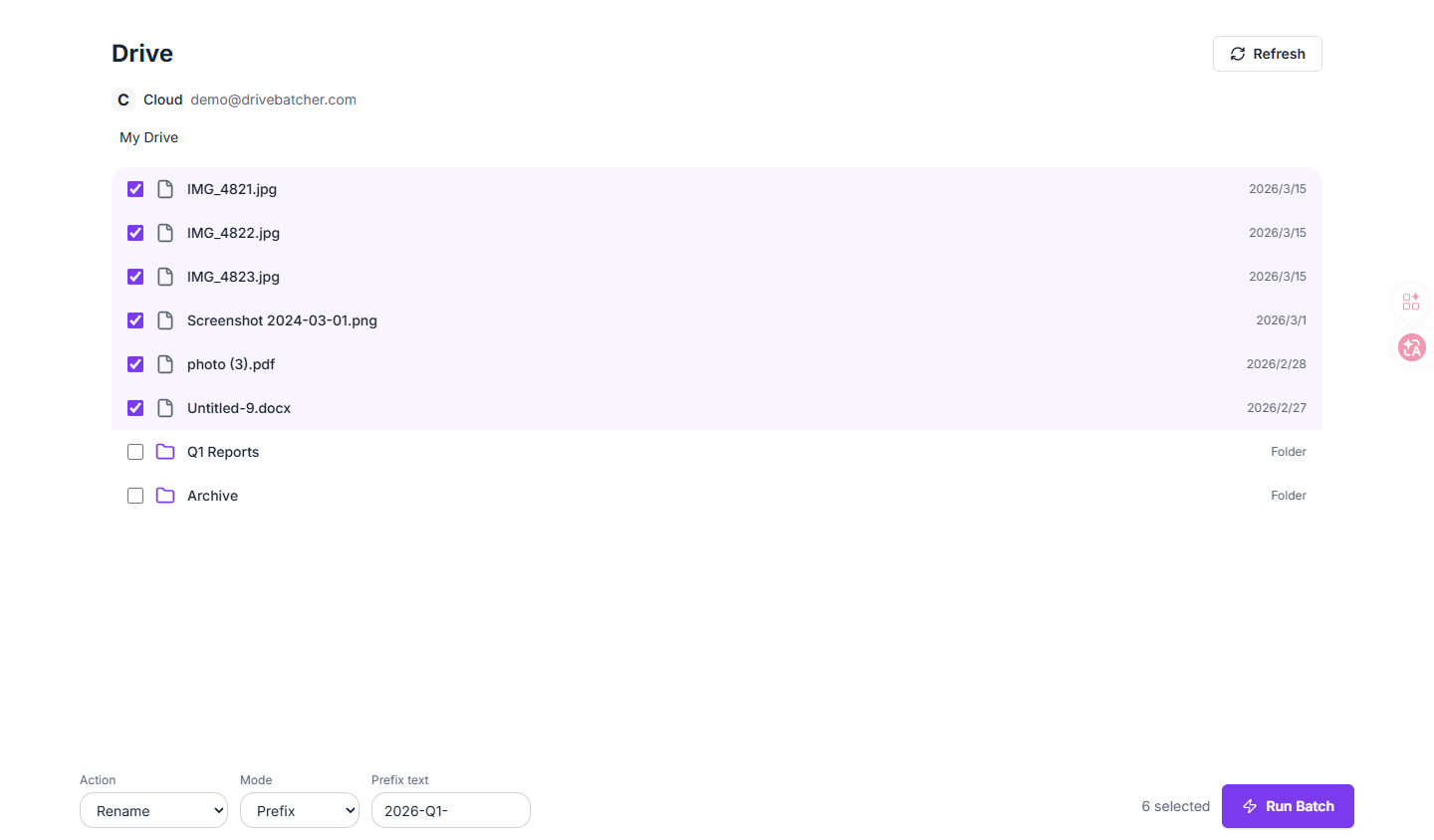
Open a folder and tick every file you want to rename — or select an entire folder and all its contents in one go.
Pick a mode and run
Choose find-and-replace, prefix, suffix, or auto-numbering, then run the batch. Every file is logged in job history.
How to
How to batch rename files in Google Drive
A step-by-step walkthrough — from connecting your Drive to running your first rename batch.
Connect your Google Drive
Click “Start free” and sign in with Google. DriveBatcher requests scoped access — you choose which folders it can see.
Open the folder with your files
From the Drive page, navigate to the folder containing the files you want to rename. You can also search by filename.
Select files to rename
Tick individual files, or use “Select all” to pick every file in the folder. Up to 10,000 files per batch on paid plans.
Choose a rename mode
Pick find-and-replace (swap text), prefix (add to the start), suffix (add to the end), or numbering (sequential numbers).
Preview and run
Review the changes before confirming. Click “Run batch” and DriveBatcher processes every file in the background.
Check job history
Every run is logged in the Jobs page with per-file status. If a name needs adjusting, just run another batch.
What you get
Built for bulk
Every action runs as a background job with per-file results.
Find & replace
Swap a word, date, or project code across many filenames in one pass.
Add prefix / suffix
Stamp “2026-Q1-” or “-final” onto dozens of files at once.
Auto-number
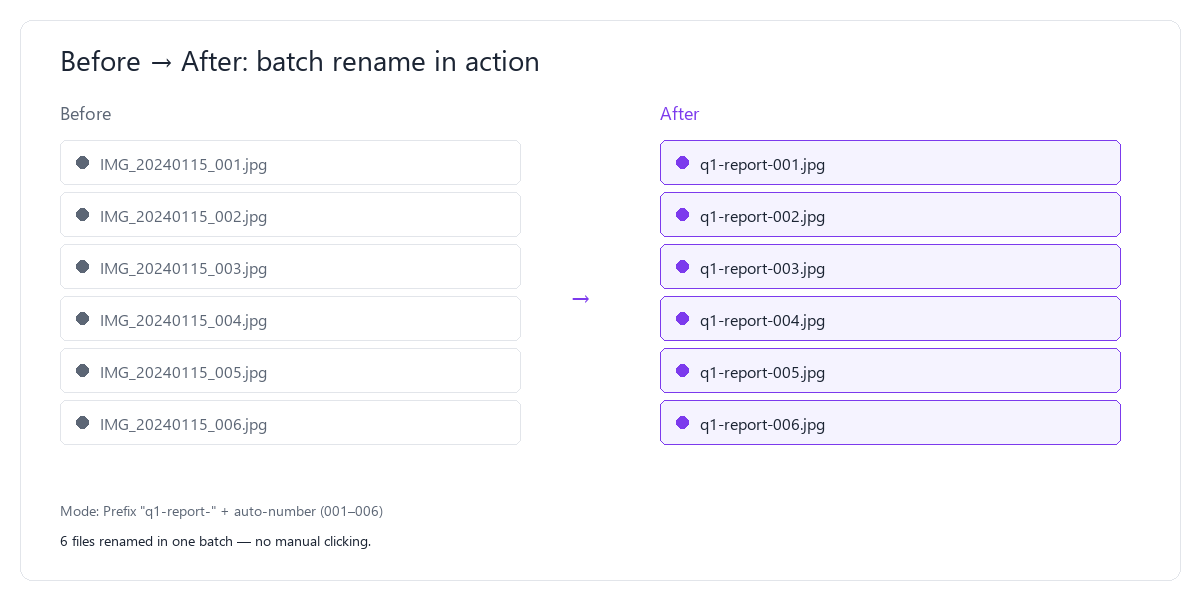
Turn IMG_0001 into report-001, report-002… with a starting index and separator.
Preview & history
Each run becomes a job with per-file results you can re-check anytime.
Safe & scoped
Access is limited to the folders you pick and revocable from your Dashboard.
Folders included
Works on every file inside the folder you select, not just the root level.
Who uses it
Built for people drowning in unnamed files
If you’ve ever renamed files one by one, you know the pain. Here’s who batch-renames the most.
Photographers
Rename hundreds of photos from IMG_1234 to client-name-001 in one batch.
Marketers
Standardize campaign assets with quarter-prefixes and consistent naming across teams.
Admins & IT
Enforce file naming conventions across shared drives without manual enforcement.
Students
Rename lecture notes, assignments, and research files with course codes and dates.
Content creators
Organize video, audio, and thumbnail assets with consistent naming before editing.
Legal & finance
Rename documents with case numbers, client IDs, or date prefixes for compliance.
FAQ
Questions, answered
Everything you need to know before your first batch.
Ready when you are
Rename your Drive files in one batch.
Connect Google Drive, pick a folder, and run. Your first 200 renames are free.