Google Drive → Dropbox
Sync Google Drive with Dropbox
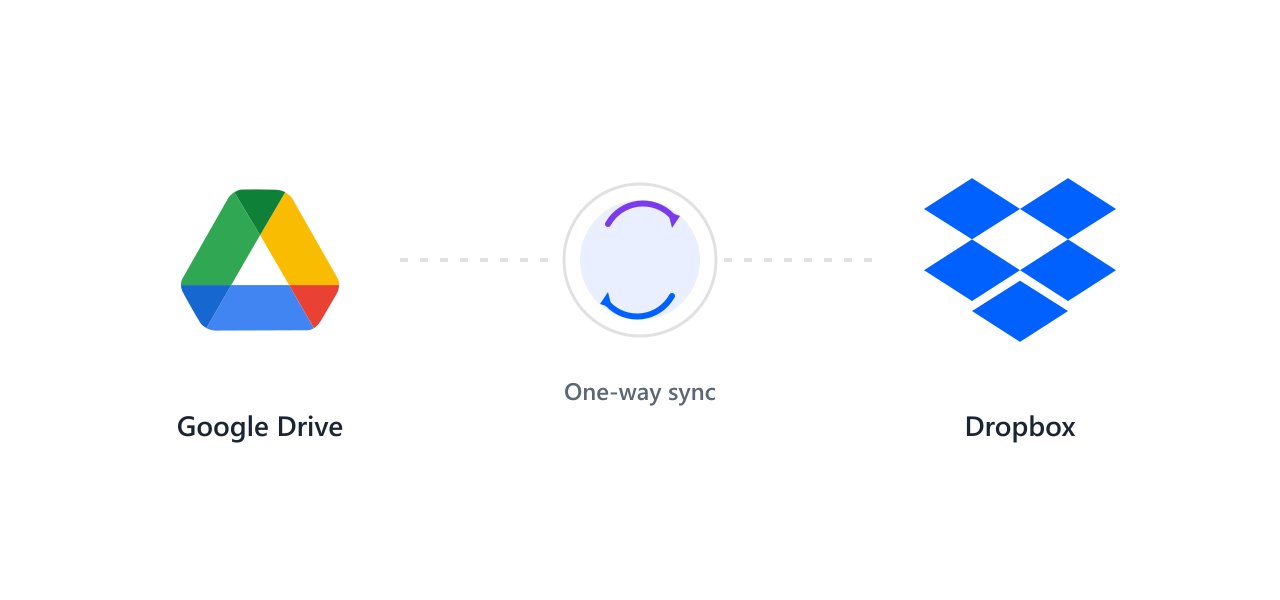
Keep a Google Drive folder mirrored in Dropbox. DriveBatcher copies new and changed files one-way or on demand — no manual downloads.
How it works
Three steps, one batch
No installs, no scripts — connect, select, and run.
Connect both drives
Link Google Drive and Dropbox with scoped access in a couple of clicks.
Pick source & target
Choose the Google Drive folder to sync and the Dropbox folder to receive the copies.
Run or schedule
Run the sync once, or set a rule so new and changed files keep flowing across.
What you get
Built for bulk
Every action runs as a background job with per-file results.
One-way sync
Mirror a Google Drive folder into Dropbox without duplicating by hand.
Copy new files
Only files missing in the target are copied; unchanged ones are skipped.
Scheduled rules
Set a sync rule and let DriveBatcher run it on a schedule.
No local download
Files move cloud-to-cloud; nothing lands on your computer.
Changed-file detection
Newer source files overwrite stale targets so both stay current.
Full history
Every sync run logs what was added, skipped, or updated.
FAQ
Questions, answered
Everything you need to know before your first batch.
Ready when you are
Mirror Google Drive into Dropbox.
Connect both drives and run your first sync. Your first operations are free.